
Life360 App: What Parents Need to Know
- Life360 shares a family member’s real-time location and can send alerts when they arrive at or leave frequently visited places
- Students can turn off location sharing or use features that limit their precise location, so parents should understand how these controls work rather than assuming tracking is always active
- Kids can create or join additional Life360 Circles, which could result in their location being shared with people outside the family
- Life360 includes several safety tools beyond location tracking, including driving information, crash detection, SOS alerts, low-battery notifications, and integrations with services such as Uber
- SmartSocial recommends that families discuss location privacy and expectations before using the app, including who a child may share their location with, when tracking will be used, and which privacy settings the family wants enabled
What is the Life360 app?
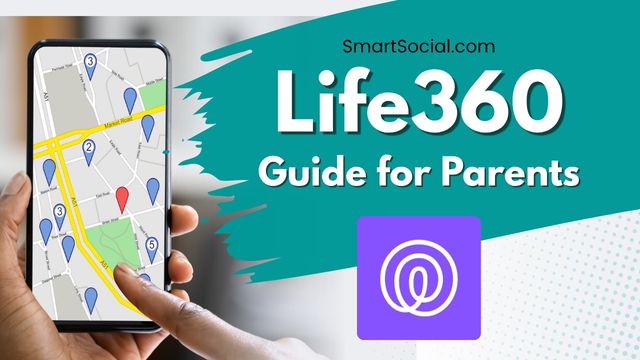
- Life360 is a real-time location-sharing app marketed as a family safety service
- The app uses GPS exact location data to report users' locations on either iOS or Android devices to other designated registered users
- Anyone in the family who will be using the app will need to install it on their device and register. Then, the family can create a “Circle,” adding other family members so their location will appear as an icon on the map for everyone in their group, or “Circle”
- The app requires a birthdate and phone number when registering. If the birthdate entered is under 13 years of age, Life360 requires parent permission in the form of an ID scan
- Users can create geofences around their home and other frequently visited destinations to create "place alerts" and get notified when friends and family come and go from those locations
- Parents can also receive notifications through Life360 when their student’s device battery is low
- Users can message their fellow Circle members through the app
- Users can see if others in their Circle are speeding, texting while driving, or if they have been in a car accident
- Life360 app has the ability to track Tile™ Bluetooth Trackers. Users can place these location trackers on items such as keys, backpacks, wallets, dogs, etc, and track their location directly from the app as well
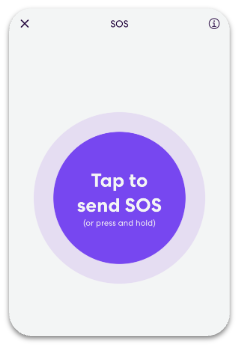
- The app has a built-in “SOS button” which sends out an emergency message to predetermined emails and phones with the user’s location
- The app is free to use, but there are premium membership options that offer more features such as more location history, vehicle crash detection with emergency dispatch, roadside assistance, flight detection, and more
- Life360 also offers a pet GPS tracker to follow a pet that allows geofencing and escape alerts
- The option to add an Uber account has also been added to the Life360 app that offers real-time visibility of Uber trip status and can also support an Uber Teen account
Why should parents & educators care?
- Students can disable the location-sharing feature at any time from their own device WITHOUT parental permission
- The app will not directly notify parents that location-sharing has been turned off. Parents have to open and refresh the app to know
- Parents should also know that there are workarounds for kids to hide or disguise their location from their parents
- Students can create their own Circle and share their location with any other registered user without parental permission
- Although the app requires parental permission for users under 13, there is no age verification built into the app, and a young child could easily put in a fake birthdate over 13 to use the app
- The company claims it is no longer selling precise location data from its users, and in January 2022 announced that it would only sell aggregated location data to several of its existing partners (Source: PC Mag)
- The Life360 “Bubbles” feature is an optional way to use location sharing across your circle. A temporary Bubble can be created for up to 25 miles and 6 hours and will only share an approximate location for the duration of the Bubble
- Bubbles will automatically burst if a car crash or emergency is detected, and any Circle member can burst a Bubble at any time if there is a safety concern
- For families with both Apple and Android users, Life360 can be a great way to share locations with everyone across the different operating systems
What can parents & educators do?
- Download and use the app yourself before asking your student to use the app
- Talk as a family about why location tracking is important for you and expectations for your students of where they should be and how they should use this app on their own device (such as not disabling its function or sharing their location with other users outside your family). Use the SmartSocial Family Media Dialogue Guide as a resource for the conversation
- Discuss with your students why sharing their location with others can be dangerous and that if they invite a friend to join a ‘Circle’, that friend can invite someone they don’t know to join the group. Then that stranger has access to their location information at all times
What is Life360 rated?
Apple App Store Rating: 4+
Google Play Rating: E (Everyone)
Developed by Life 360, Inc., based in San Francisco, CA
Available for Android, iOS, and Windows
Life360 in the news

By bringing Uber into Life360, we’re making it easier for families to coordinate transportation while giving parents greater visibility, confidence, and peace of mind throughout the journey. - Kevin Sung, VP of Product for Life360, The Globe and Mail

It is invasive in a lot of ways. For others, it is just the cost of using a smartphone and having a reliable way to know where your loved ones are located. - Forbes
Privacy/setting recommendations for Life360
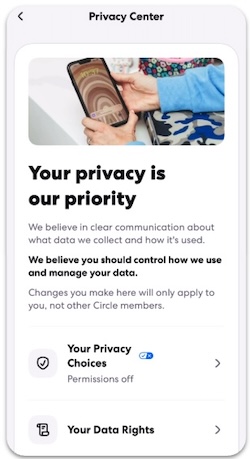
Turn off Personal Information Sales
- In each Circle member’s app, tap the gear icon in the top left corner
- Scroll down to “Privacy Center”
- Tap “Your Privacy Choices”
- Scroll down and turn “Include my data” to off (gray)
- This will prevent Life360 from selling your personal information to third parties for commercial use or selling your aggregated information
Turn off Bubbles access
- From the parent (or Admin) device, tap the gear icon in the top left corner
- Tap “Circle Management”
- Tap “Set Bubbles access”
- Choose which Circle members are allowed to create Bubbles
Key terms/slang about Life360
- Circle - A group of registered Life360 users that have the ability to view each other’s locations. Multiple Circles can be set up on each device
- Bubbles - A possible method to customize location sharing within your Circle. It is a temporary “bubble” surrounding a location up to 25 miles wide that when turned on, will only share the user’s approximate location as opposed to their precise location
- SOS - A panic button within the app users can press that alerts emergency contacts
Conclusion
Life360 can be a useful safety tool for families, especially when kids are becoming more independent and spending more time away from home. But location sharing works best when it is paired with clear expectations, ongoing conversations, and an understanding of the app’s privacy settings. Parents should review the app together with their child, explain why and when location sharing will be used, and make sure kids understand the risks of sharing their location with people outside the family. The goal is to use technology as one part of a broader safety plan while continuing to build trust, communication, and good judgment as kids grow.
More resources for parents, students, & educators
How to Optimize Parental Controls: Balancing Safety & Privacy for Families
You're not logged in!
Log in or join to protect your family and enter for a chance to win cool prizes
Become a member or log in to learn more on this topic

This is great info, thanks for giving me some ideas on how to start a dialogue with my teen!

Sharon M.
Parent VIP Member
Josh's presentation about social media was unbelievably fantastic. Our students learned so much about what kids should and shouldn't be doing. The fact that it is such a thoughtful process made it all worthwhile.
Director of College Advising
Educator Webinar Attendee
This webinar is a very helpful eye-opener on the apps that are popular with my students.
Irene C.
Educator Webinar Attendee
You're not logged in!
Log in or join to protect your family and enter for a chance to win cool prizes

., start learning from this page to enter for a chance to win each week!*
Hello, I'm Josh, the founder of SmartSocial.com.
Don't leave this page until you fill out our feedback form that will appear after you learn from the resources...