
Parents Guide to YouTube Kids (2026)

Why YouTube Kids Offers a Safer Viewing Experience Than YouTube
- Learn why YouTube Kids is different from regular YouTube and how its parental controls can help create a safer viewing experience for younger children
- Discover the biggest YouTube Kids risks, including inappropriate videos, addictive viewing habits, and advertisements that can still appear despite the filters
- Get step-by-step safety settings parents can use right away, including passcodes, screen time limits, blocked channels, and turning off search
- Understand why parental supervision still matters even when using kid-focused apps, because no filter or algorithm catches everything
- Find practical ways to help children build healthier digital habits by setting expectations, choosing safe channels, and encouraging educational content
The Hidden Toll of Endless Scrolling
Win prizes! After watching this video, click here to share quick feedback.
YouTube Kids vs YouTube
Win prizes! After watching this video, click here to share quick feedback.
Why Many Parents Choose YouTube Kids First
- YouTube Kids is a kids-targeted version of YouTube that offers limited content in an easy-to-navigate environment
- YouTube Kids offers a few parental controls that YouTube doesn't offer, including a parent passcode to lock the settings, a time limit feature, and age-appropriate advertisements that make it more attractive than YouTube for parents of younger children
- Parents set an age range for content for each child’s profile they create
- YouTube Kids does not allow videos with paid product placements or endorsements or videos that are sensational, deceptive, or clickbait (Source: YouTube)
What Could Still Slip Through on YouTube Kids

- Potential Inappropriate Videos - YouTube warns users that “not all videos have been manually reviewed” and regardless of the setting parents select, mature content could be seen (Source: YouTube)
- Some parents say that their children are encountering disturbing videos (Source: ScaryMommy.com) so it is important to check in on what your kids are watching
- Addiction - The YouTube algorithm is designed to keep users watching videos. It uses a user’s watch and search history, subscribed channels, country, time of day, and more to automatically select videos to play next
- The “Auto Play” feature is turned off by default in YouTube Kids
- Advertisements - Companies pay to get their messages seen and advertisements are everywhere in free versions of YouTube and YouTube Kids
- “All paid ads must be in strict compliance with our advertising policies, are clearly marked as advertisements, and are only approved to be shown on YouTube Kids if they are family-friendly.” (Source: YouTube)
- YouTube Premium membership is available for users who want to avoid all paid advertisements
What Parents Can Do Beyond the Filters
- Talk as a family to find out why your student wants to use YouTube and discuss the potential dangers so everyone understands
- Talk with your students and use our Family Media Agreement so that everyone understands the expectations and to help them develop healthy digital habits
- Follow the recommended safety settings listed below
- Don’t rely solely on the filters. Parents must still closely monitor what kids of all ages are doing in the YouTube Kids app
- Encourage your student to use YouTube in a positive way by watching educational videos and learning new skills
- Subscribe to safe channels your children would like, so they get those videos recommended to watch next
- Report inappropriate videos and help YouTube manually review them for inappropriate content
How Parents Can Customize the YouTube Kids Experience
- “Approve content yourself” is the default setting, so the viewer can watch only the videos, channels or collections the parents have approved (and they cannot search for videos)
- The other age settings use YouTube algorithms to determine appropriate subjects:
- Preschool age (4 and under)
- Younger (Ages 5-7)
- Older (Ages 8-12)
- Read more about the new supervised experience for kids on YouTube
- Visit our SmartSocial guide on Parental Control on Student Devices
- Apple App Rating: 4+
- Google Play Rating: E (Everyone)
- YouTube Kids app is available on iOS or Android devices or on a web browser at YouTubeKids.com
YouTube Kids Features Designed to Give Parents More Control;
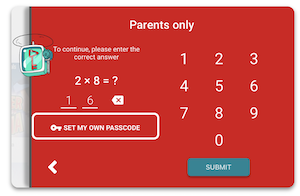
The “Parents only” passcode
The default “Parents only” code to make changes to a profile is a fairly simple math problem. We recommend saving your own unique passcode.
- Tap the lock symbol in the bottom right of the app
- Tap the “Set My Own Passcode” and follow the directions on the screen
- Kids can have their own passcode too, which can be helpful if you have multiple kid accounts
How to set screen time limits
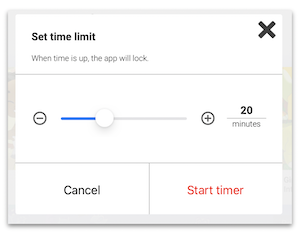
YouTube Kids offers a unique feature that YouTube does not, the Timer. This screen time limit feature will lock the app when the time expires. The time limit will have to be manually started each time it is being used.
- Tap the lock button on the lower right and enter the parent passcode
- Tap “Timer”
- Slide the bar to the time limit and tap “Start timer”: our recommendation is to take a break at least every 20 minutes
- When time is up, the video will stop and require the parent passcode to continue
Turn Off “Search”
Parents have the option to turn off the Search feature which will limit the watching experience.
- Tap the lock button on the lower right and enter parent passcode
- Tap “Settings”
- Select the appropriate child
- Scroll down and turn the slider under “Search” to gray to turn the Search feature off
Block videos or Channels in YouTube Kids
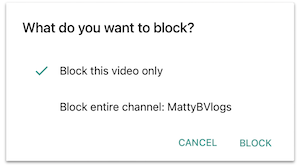
- While your student is watching a video, tap the 3 dots in the upper right corner of the video
- Select either “Block this video only” or “Block entire channel”
- Parents can unblock videos under the settings menu
More resources for parents, students, & educators
Navigating YouTube: What Parents, Educators, & Students Need to Know
YouTube and Tweens: Tips for Families to Use YouTube Safely
Using YouTube to Explore Colleges & Careers
Can YouTube Help a Student's Online Reputation
Conclusion
Navigating the vast world of online content can be daunting for parents aiming to provide their children with enriching and safe digital experiences. YouTube Kids, a platform designed specifically for younger audiences, offers a plethora of educational videos, entertaining cartoons, and family-friendly content.
Parents know that kids want to watch YouTube videos and YouTube is offering a safer alternative that gives them more control over the videos their kids can watch. Even though YouTube Kids is a safer alternative to YouTube and other video streaming services, parents should still monitor the videos their kids are watching.
You're not logged in!
Log in or join to protect your family and enter for a chance to win cool prizes
Become a member or log in to learn more on this topic

This is great info, thanks for giving me some ideas on how to start a dialogue with my teen!

Sharon M.
Parent VIP Member
Josh's presentation about social media was unbelievably fantastic. Our students learned so much about what kids should and shouldn't be doing. The fact that it is such a thoughtful process made it all worthwhile.
Director of College Advising
Educator Webinar Attendee
This webinar is a very helpful eye-opener on the apps that are popular with my students.
Irene C.
Educator Webinar Attendee
You're not logged in!
Log in or join to protect your family and enter for a chance to win cool prizes

., start learning from this page to enter for a chance to win one of our 28+ prizes each week.
Hello, I'm Josh, the founder of SmartSocial.com.
Don't leave this page until you fill out our feedback form that will appear after you learn from the resources...